Can I add a QR code and a timestamp on the same photo?
Yes. You can combine the QR layer with visible date and time, location, logo, signature, and other text overlays in one export.
Free trial · QR on the image
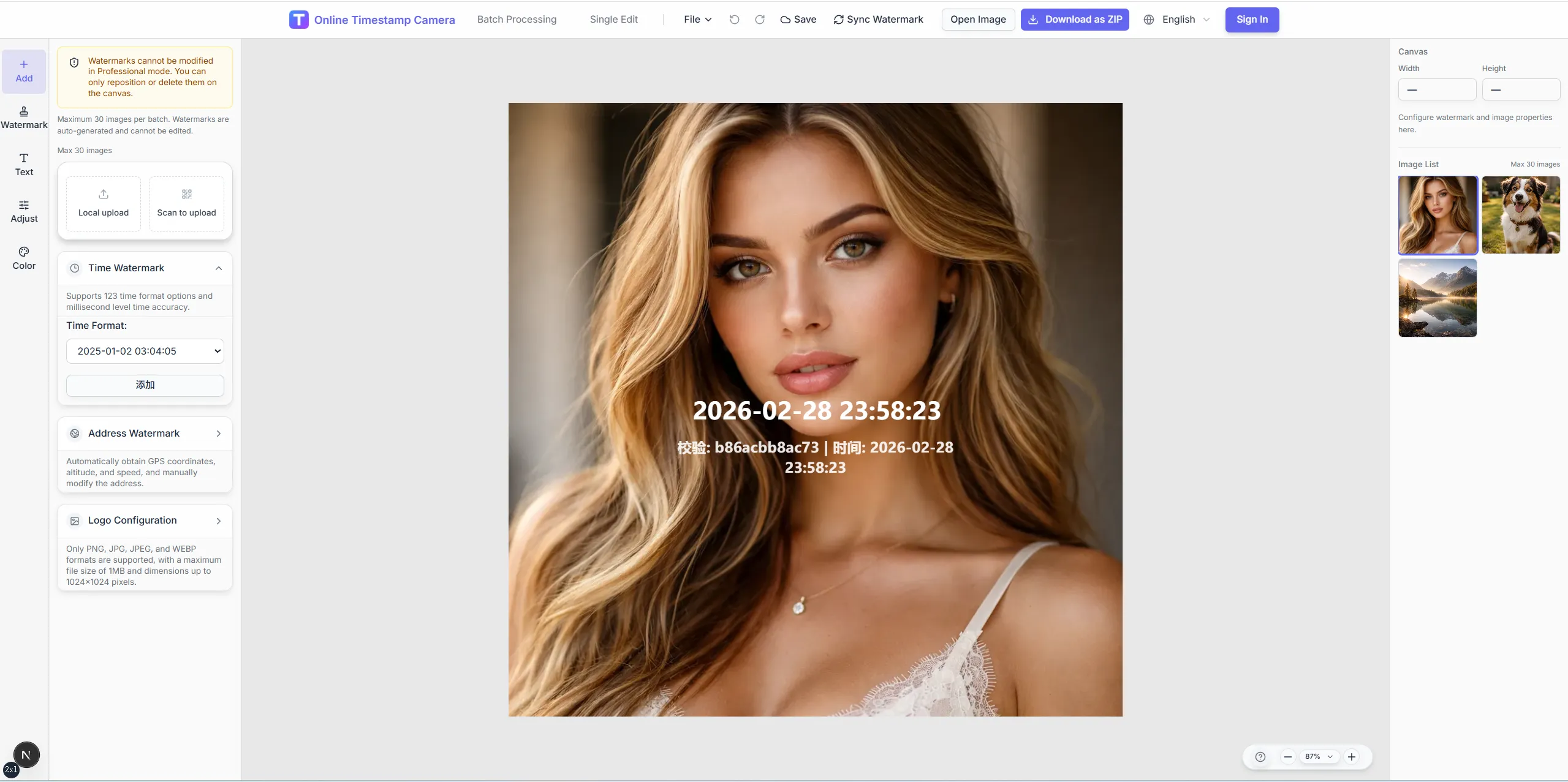
Place a QR code alongside time, logo, or summary text on the final export. Practical for asset labels, delivery proof, event check-in visuals, and field handoff records.
12:33:55
Dec 12, 2024 · Thursday
Miami, FL · 25.7617°N, 80.1918°W
Combine QR with visible time, brand marks, and summary lines in one browser workflow.
Useful when the photo itself needs to carry a scannable link, code, or structured handoff marker.
Works well with timestamp, logo, signature, and summary layers in the same workflow.
A practical fit for asset tagging, delivery proof, event check-in visuals, and operational records.
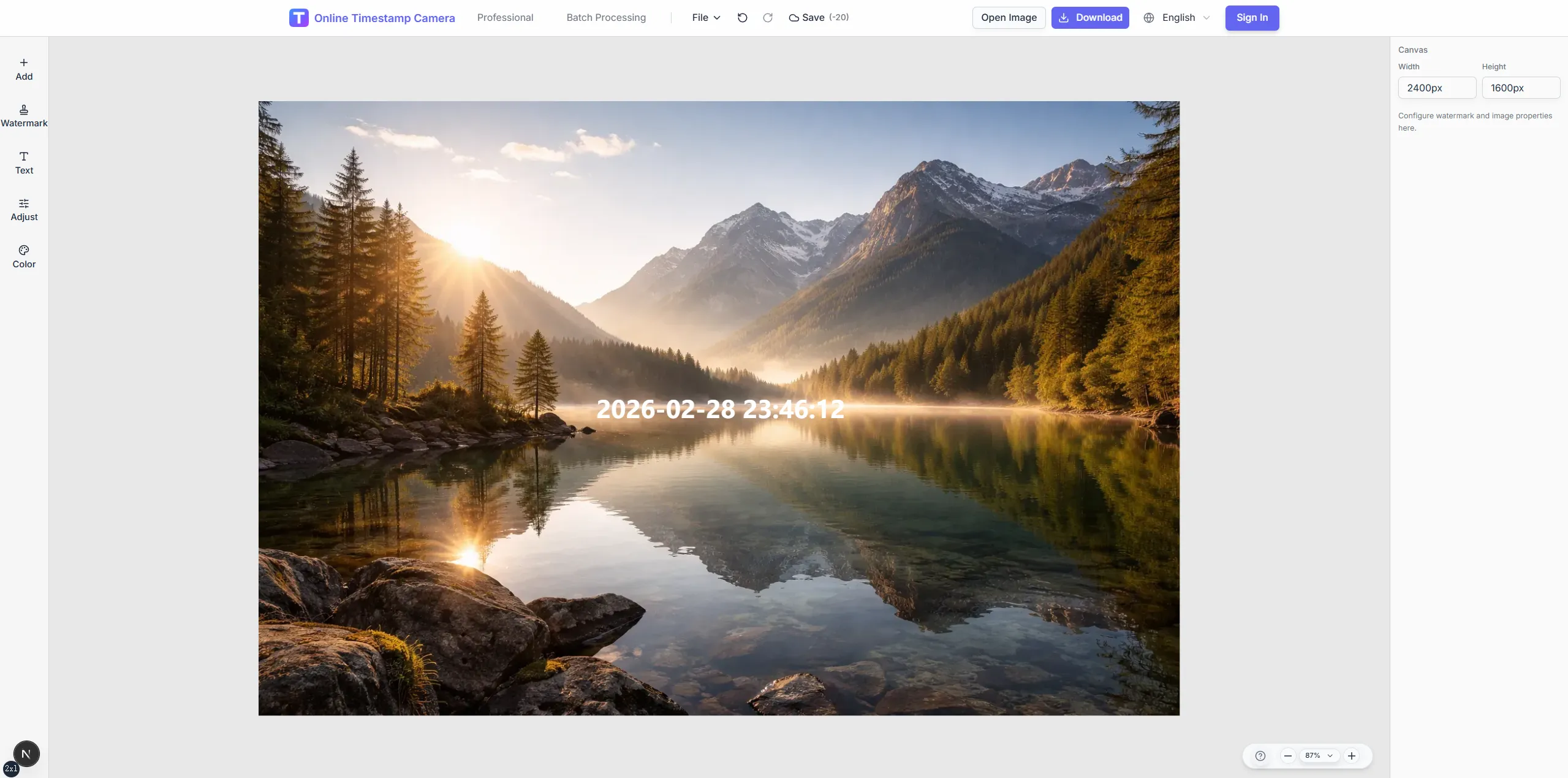
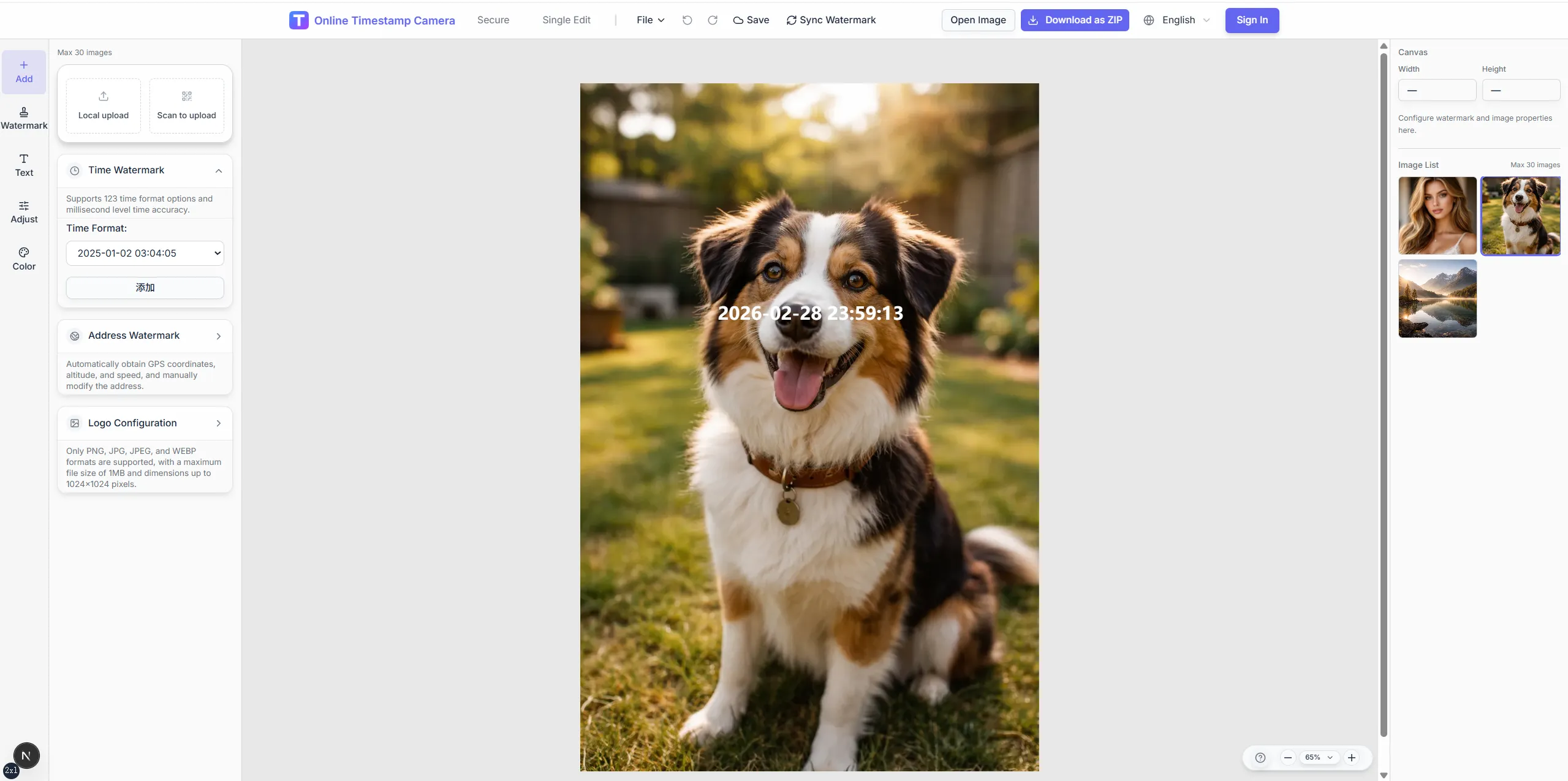
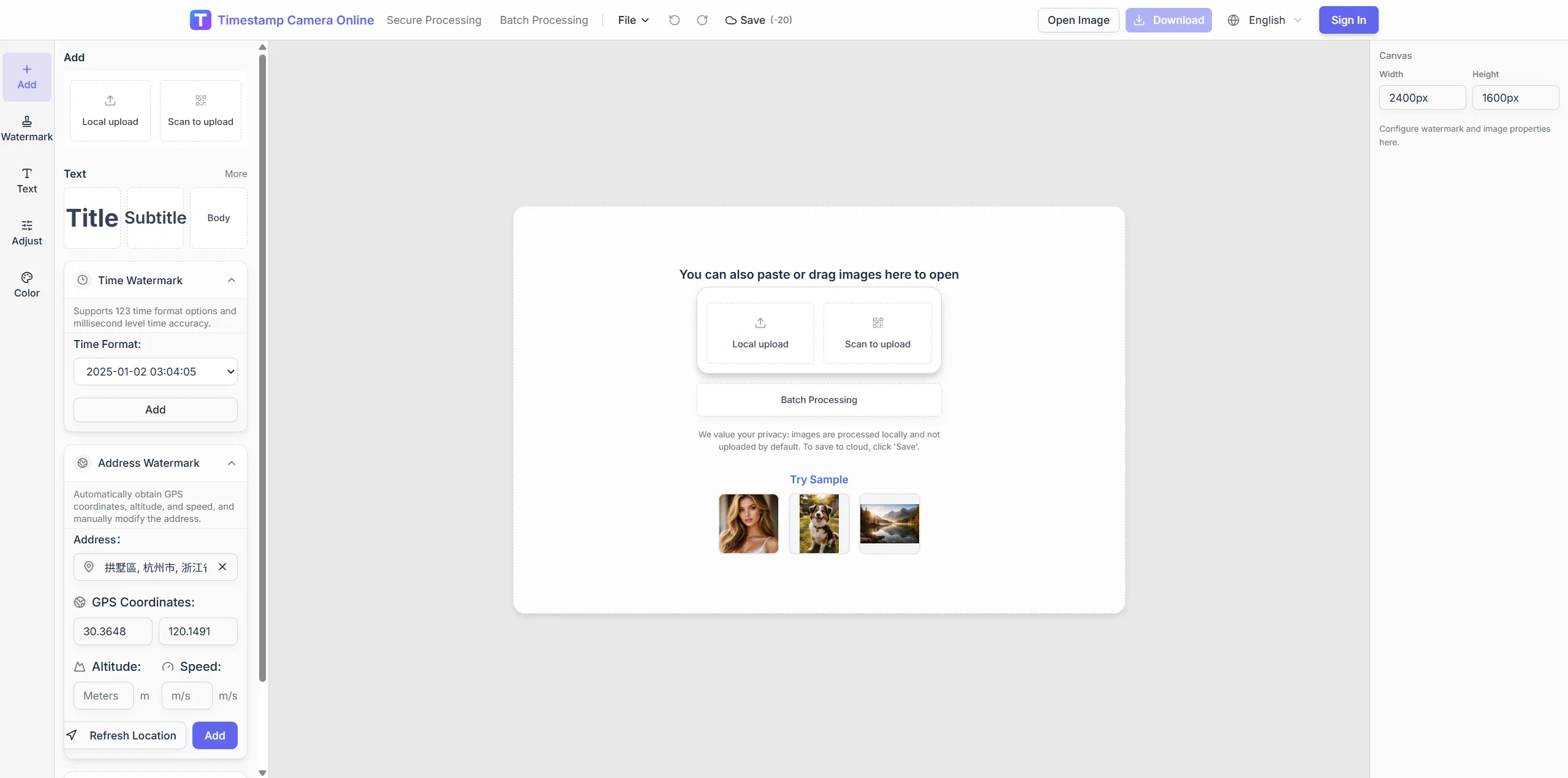
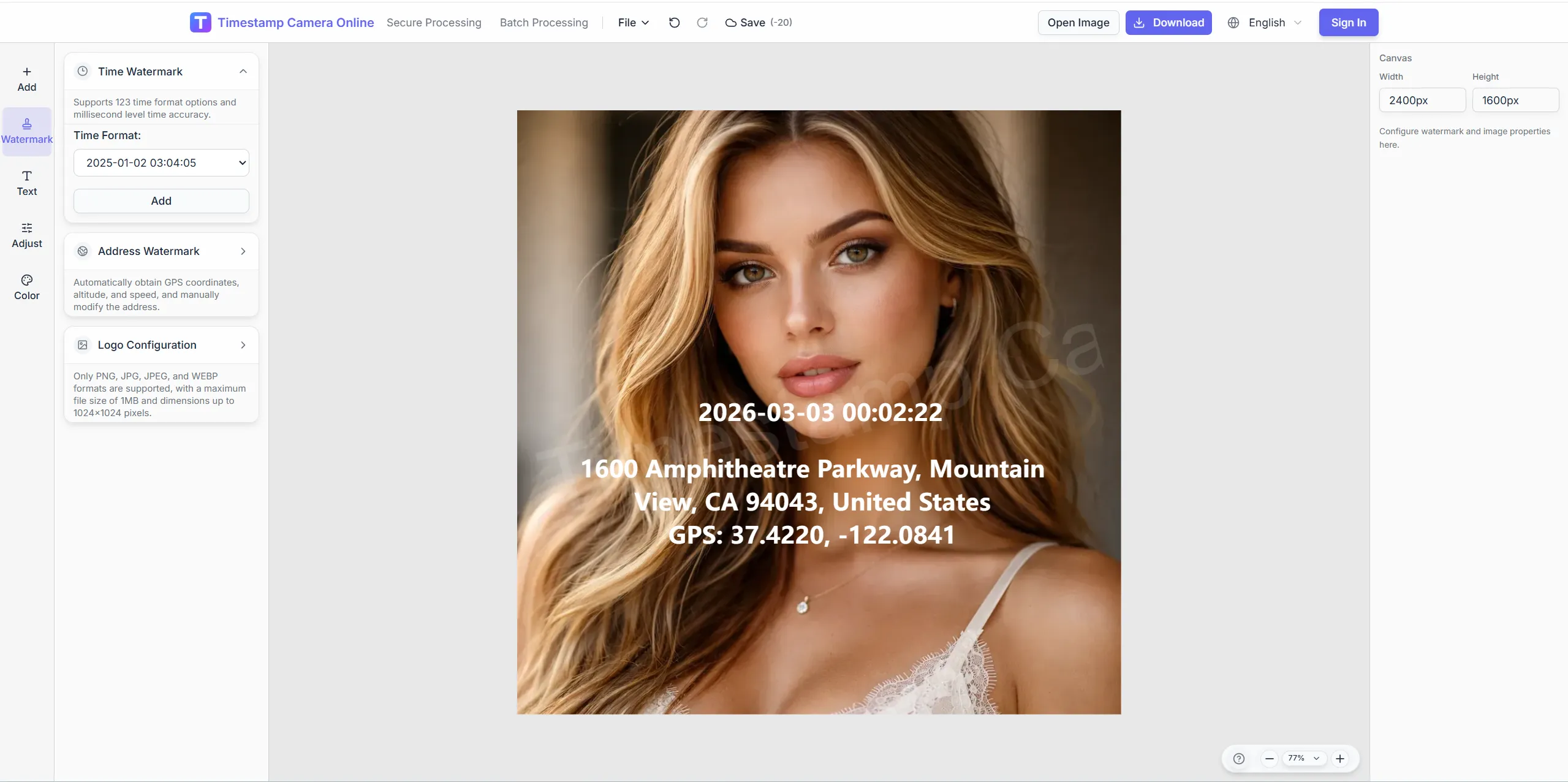
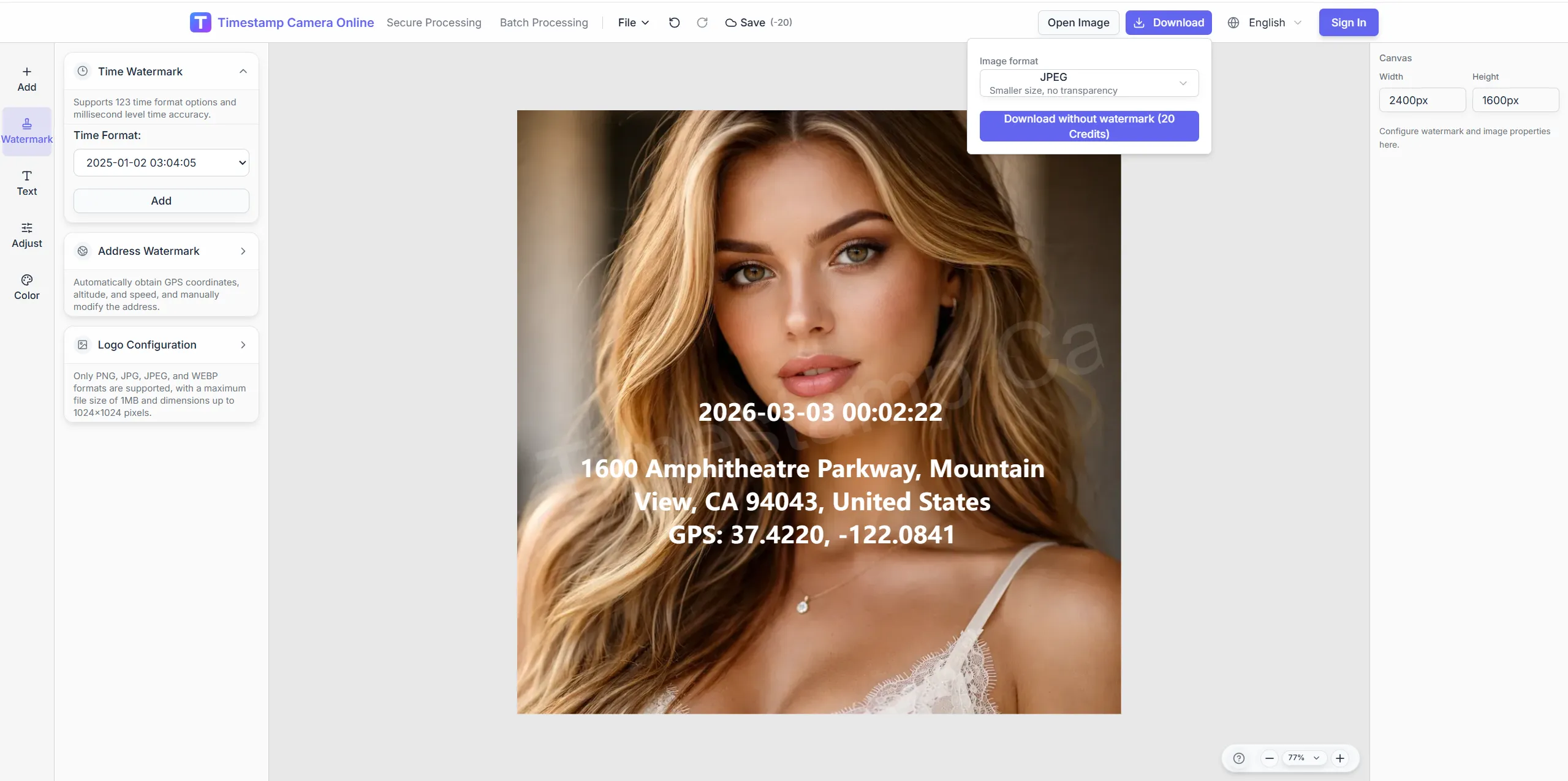
Place a QR code alongside time, logo, or summary text on the final export. Practical for asset labels, delivery proof, event check-in visuals, and field handoff records.
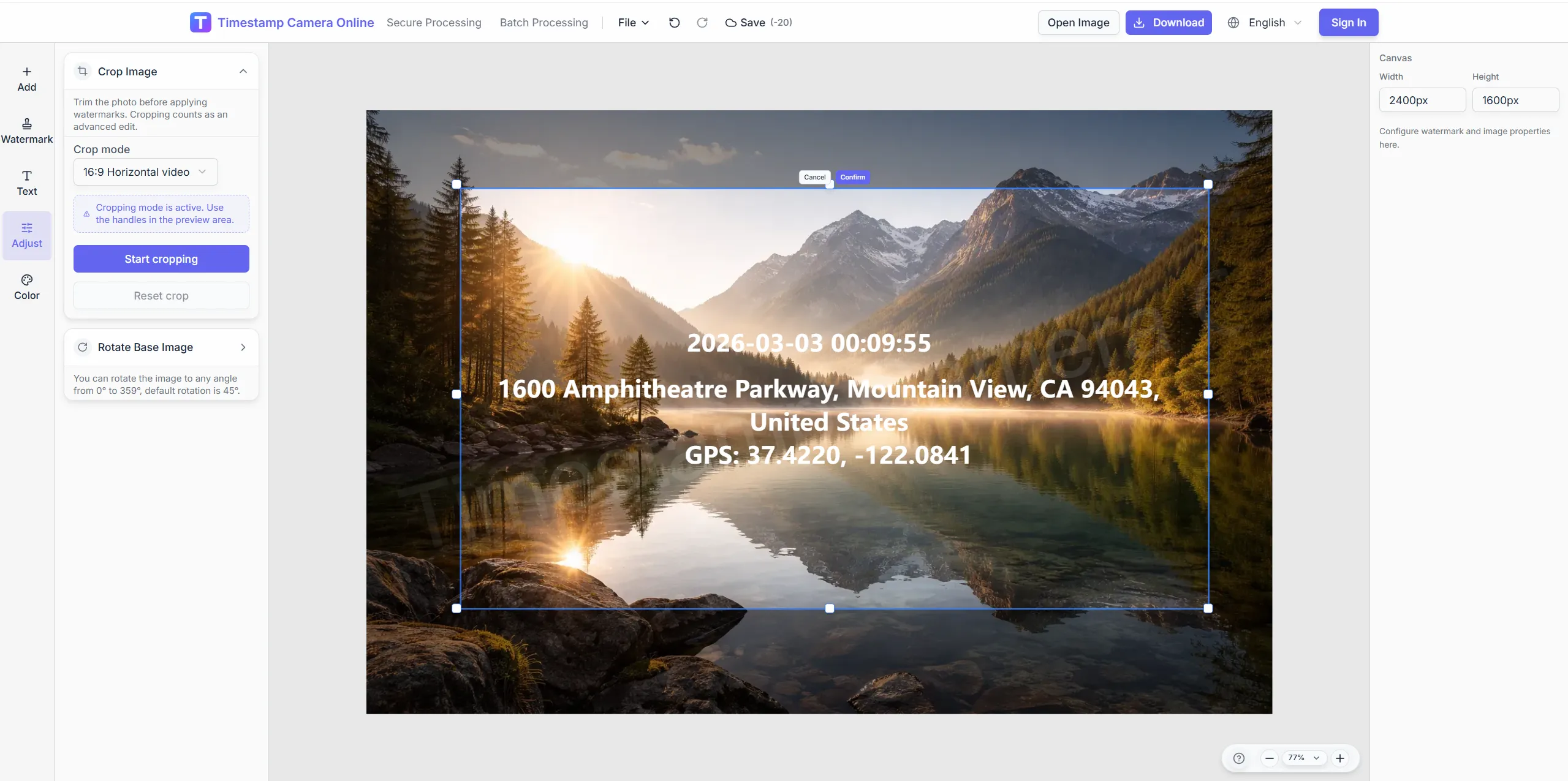
Crop with enough clear space so codes scan reliably.
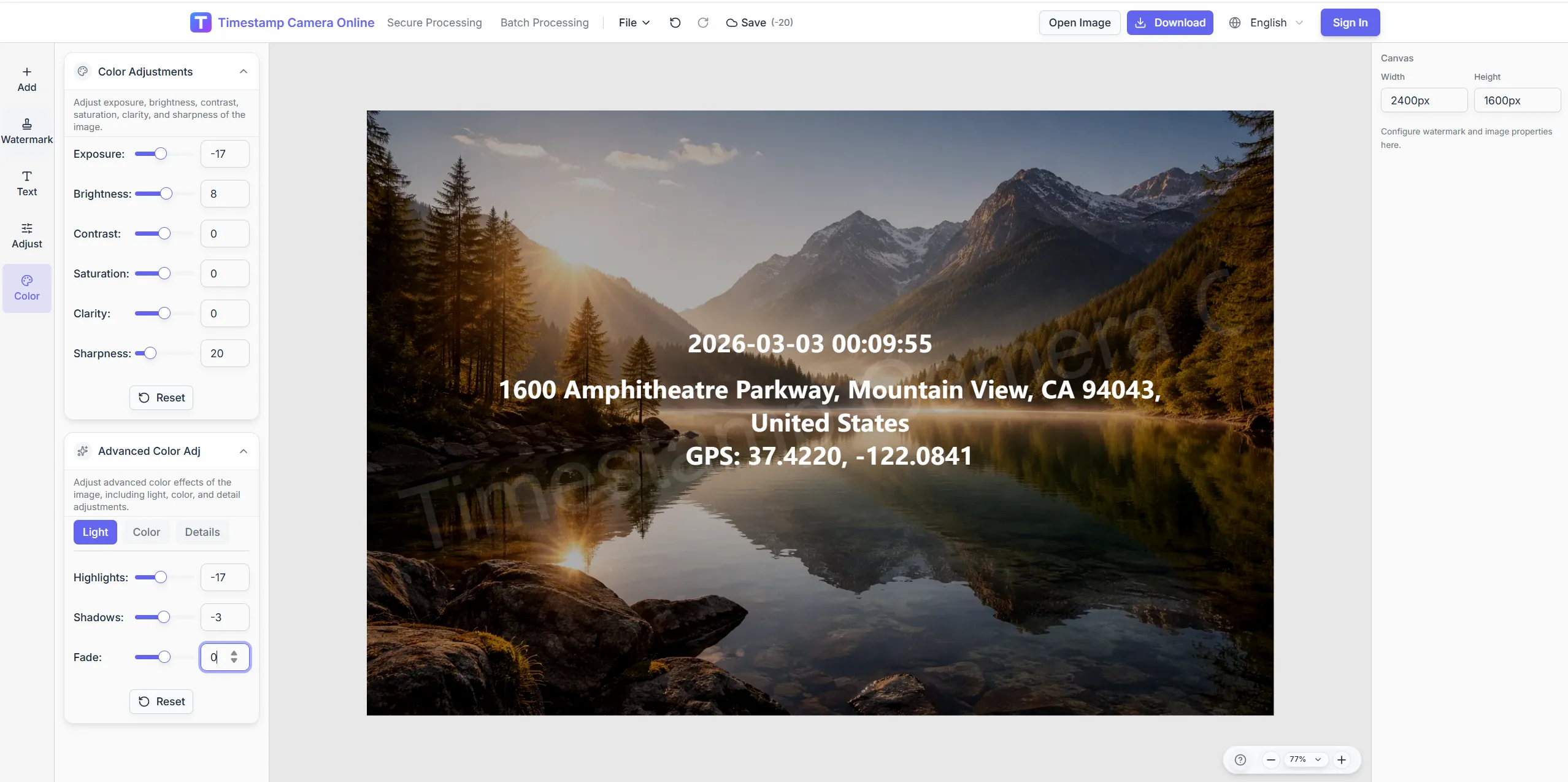
Help QR remain readable on night or indoor photos.
Add official marks on formal delivery exports.
Mask sensitive storefront text while keeping QR and time.
Overlay QR or links in the browser for asset labels and delivery scans.
JPG, PNG, or HEIC—single or batch.
Enter a URL, asset ID, or CMMS work-order address.
Drag the QR block; keep scan margins clear.
Download or open the editor for time and logo layers.
Explore adjacent workflows teams pair with online QR overlays—same overlay standards, different industries, and concrete field outcomes.
Combine time, place, device details, and QR or barcode layers when inspection photos need stronger operational context.
View scenario
Document events, visits, and deliveries with time-and-place overlays that help others understand what happened and when.
View scenario
Add logos, signatures, stamps, and custom overlays when you want a more branded or client-ready export.
View scenario
Combine time, place, and proof-style marks when audit, claim, or compliance handoffs need stronger trust at a glance.
View scenario
Use reusable templates for inspections and site progress where time, address, weather, and device context help explain the photo.
View scenario
Overlay visible date and time on photos when attendance, inspections, claims, or milestones need a clear capture moment.
View scenario
Works alongside timestamps and logos on one frame.
Originals are not uploaded to the server.
Asset inventory, client delivery, event check-in.
QR bottom-right and time bottom-left is a common pairing.
Tiny QR codes or glare can break scans.
Practitioners using online QR overlays share measurable wins: fewer retakes, faster reviews, and cleaner handoffs to HR, owners, or carriers.
Cleveland facilities link chiller photos to CMMS QR codes in-browser before PM tickets close. Technicians scan exports on tablets and jump to asset history first try. Quarterly rounds finished two days early last cycle.
George Patel · Facilities manager, Cleveland OH
Austin couriers embed order QR on doorstep photos customers scan for delivery proof. Disputes on arrival windows fell after codes matched CRM timestamps. Drivers need no separate labeling app on routes.
Paul Hendricks · Last-mile ops, Austin TX
Nashville GCs add drawing-sheet QR beside inspection timestamps on punch-list photos. Subs stopped emailing mystery close-ups without context. Owner walk-throughs move faster with scannable links on every frame.
Luke Berger · Project manager, Nashville TN
Asset inspection and branded delivery links.
Place a QR code alongside time, logo, or summary text on the final export. Practical for asset labels, delivery proof, event check-in visuals, and field handoff records.
Yes. You can combine the QR layer with visible date and time, location, logo, signature, and other text overlays in one export.
No. the timestamp editor is better suited when the QR code needs to stay readable and serve a real workflow purpose such as linking, check-in, or asset identification.
Use it when the main task is making the QR code part of the final photo output, rather than treating it as a secondary detail.
Yes. Generate QR layers pointing to any URL or encoded asset ID and export them with timestamps.
URLs, text, asset IDs—whatever you enter in the editor.
Keep a quiet zone; aim for at least 8% of the short edge in preview.
QR is vector-style overlay; heavy JPEG compression can blur edges.
This tool adds QR fast; the scenario page covers CMMS inventory flow.
Batch watermark can apply one QR template.
You control the URL—test the destination before delivery.
Upload an image, place a scannable QR, and preview the export.