How to Save Editor Batch Presets for Repeat Timestamp Workflows
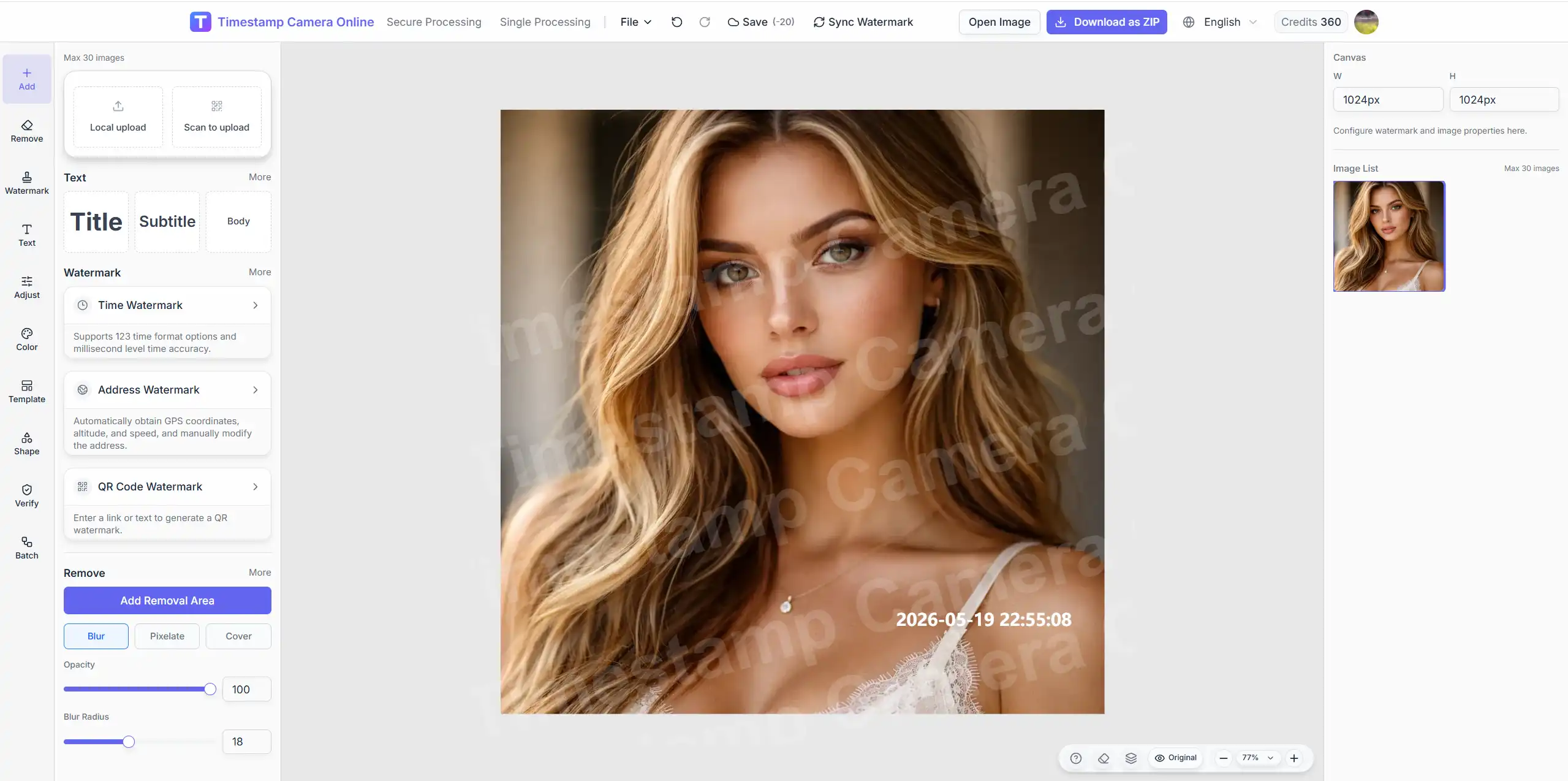
If you process similar photos every day, rebuilding the same watermark layout each time is wasted effort. The Batch panel in the editor lets you save the current setup and reuse it later.
This is different from the batch watermark page, which is for processing many images at once. The editor batch preset is for saving a layout rule you trust.
What a batch preset stores
A saved preset keeps the current editor configuration, including the watermark structure you have already set up. That may cover elements such as:
- time format and placement
- location block
- text layout
- logo or signature position
- other active overlay settings in the current setup
Once saved, you can apply the same preset again without rebuilding from zero.
Where to save it
Open the editor, configure the photo the way you want future images to start, then select Batch on the left.
Enter a preset name your team will recognize, such as:
- Inspection Team Standard
- Delivery Proof Layout
- Patrol Photo Default
Save the preset and reuse it when the next similar job arrives.
When batch presets are worth using
Use a saved preset when:
- one person handles repeat documentation tasks
- a team wants a shared starting layout
- you move between single photos and larger batches often
- you already settled on a format and do not want drift
Do not save a preset until you have tested the layout on a real photo and confirmed it exports cleanly.
Recommended workflow
Step 1. Build the layout on a representative photo
Use a real sample image from the workflow, not a blank or idealized demo photo.
Step 2. Save the preset with a clear name
Future you should understand the name without opening it.
Step 3. Apply it to the next job
Load the preset, swap in the new photo, and adjust only the fields that truly change.
Step 4. Move to batch mode when volume increases
When the same preset works for one photo, it is often ready for batch watermark processing too.
Processing many photos with one rule?
Open batch mode when the same saved layout should be applied across a full photo set.
Best practices
Keep the preset count small
Three trusted presets are more useful than twenty unused ones.
Review after applying
A preset is a starting point, not a promise that every photo needs zero adjustment.
Update the preset when the team changes standards
If date format or placement rules change, save a new version rather than forcing old exports.
Common mistakes
Saving too early
If the layout is still experimental, the preset will spread the wrong format.
Using vague names
Names like "Preset 1" create confusion within a week.
Expecting presets to replace judgment
Similar photos still need a preview check before export.
Related guides
Final takeaway
Batch presets turn a good layout into a reusable standard. Configure the photo once, save it in Batch, and reuse that setup whenever the same documentation job comes back.