How to Batch Add Timestamp to Multiple Photos Online
If you only process one photo, manual editing is fine. If you process twenty, fifty, or two hundred photos, manual editing becomes the bottleneck.
This is where batch timestamp workflows matter. The goal is not just speed. The real goal is consistent output across multiple images.
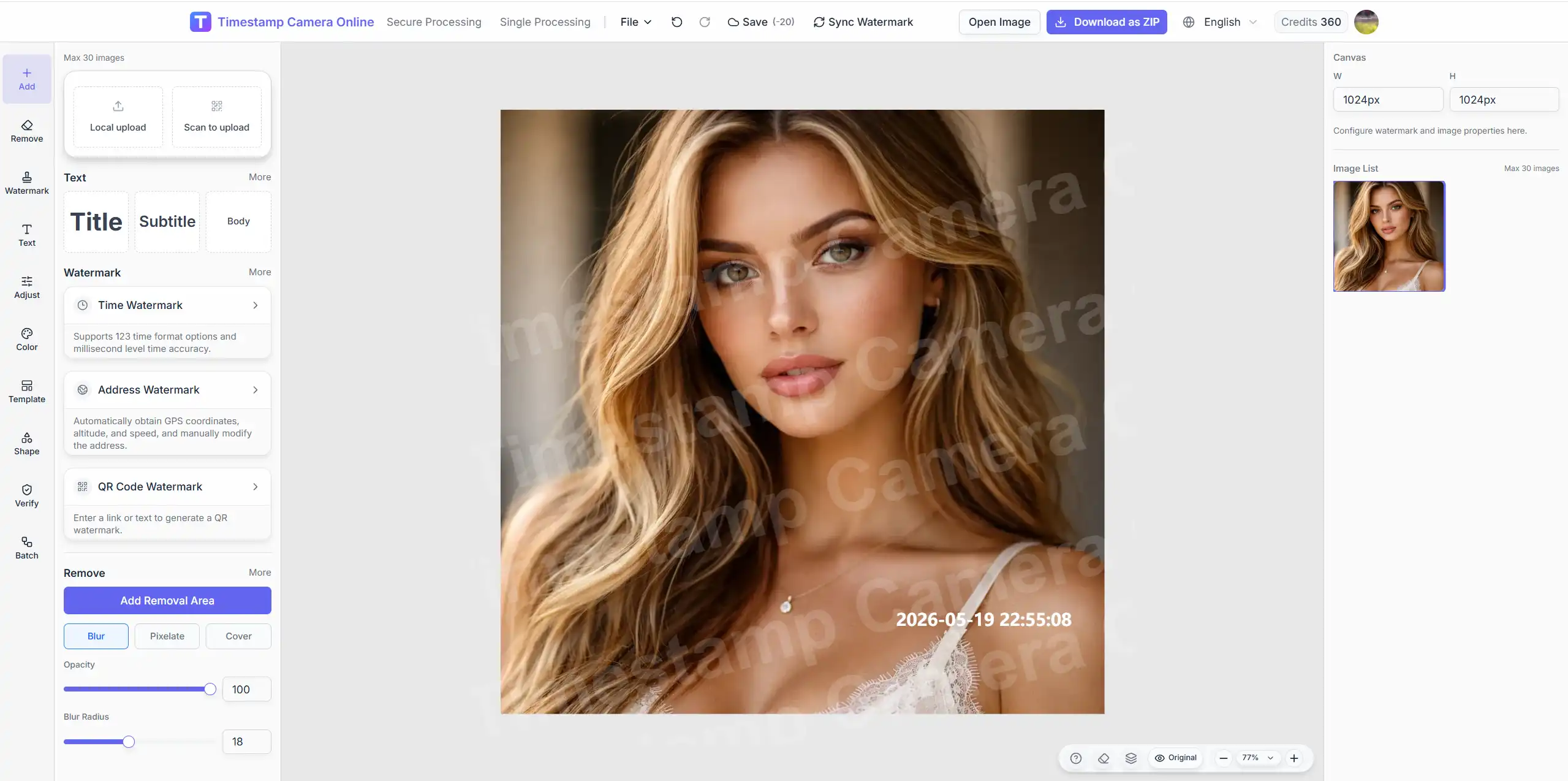
Use a batch workflow when multiple photos should share one timestamp rule. If every image needs its own layout, switch back to the single-image editor.
When batch timestamping is the right choice
Batch processing is useful when:
- a site team documents daily progress with many photos
- an inspector exports multiple proof images from one visit
- a field worker wants consistent time labels across a full report
- a business needs standardized output for archiving or handoff
If every image needs a totally different layout, use the regular editor. If the images share one timestamp rule, use batch watermark.
Why batch workflows are not just about speed
Users often think batch mode is just a faster version of editing. In practice, it is really about keeping the whole set consistent.
Batch mode improves:
- formatting consistency
- placement consistency
- review efficiency
- team output standards
A mixed archive with different timestamp sizes, positions, and date formats looks unreliable even when all values are technically correct.
A practical batch workflow
Step 1. Decide the timestamp standard first
Before uploading anything, answer these three questions:
- What date and time format will every image use?
- Where should the timestamp appear on every image?
- Do you also need location, logo, signature, QR, or summary text?
If you answer those after processing starts, the batch run becomes inconsistent.
Step 2. Group similar photos together
Do not mix very different images into one batch unless the same overlay really works for all of them.
Good grouping examples:
- same project, same day
- same device orientation
- same report type
- same output audience
Bad grouping example:
- landscape inspection photos plus portrait social photos plus marketing visuals in one run
The more similar the batch, the more professional the result.
Step 3. Apply one layout rule
For most documentation workflows, pick:
- one font size
- one corner position
- one opacity rule
- one spacing rule
That makes the result feel deliberate rather than improvised.
Ready to process a full batch?
Open Batch Processing when multiple photos should share one timestamp format, placement rule, and review standard.
Step 4. Decide whether the whole batch also needs shared cleanup or image adjustments
Modern batch workflows can be more than "one time line pasted everywhere".
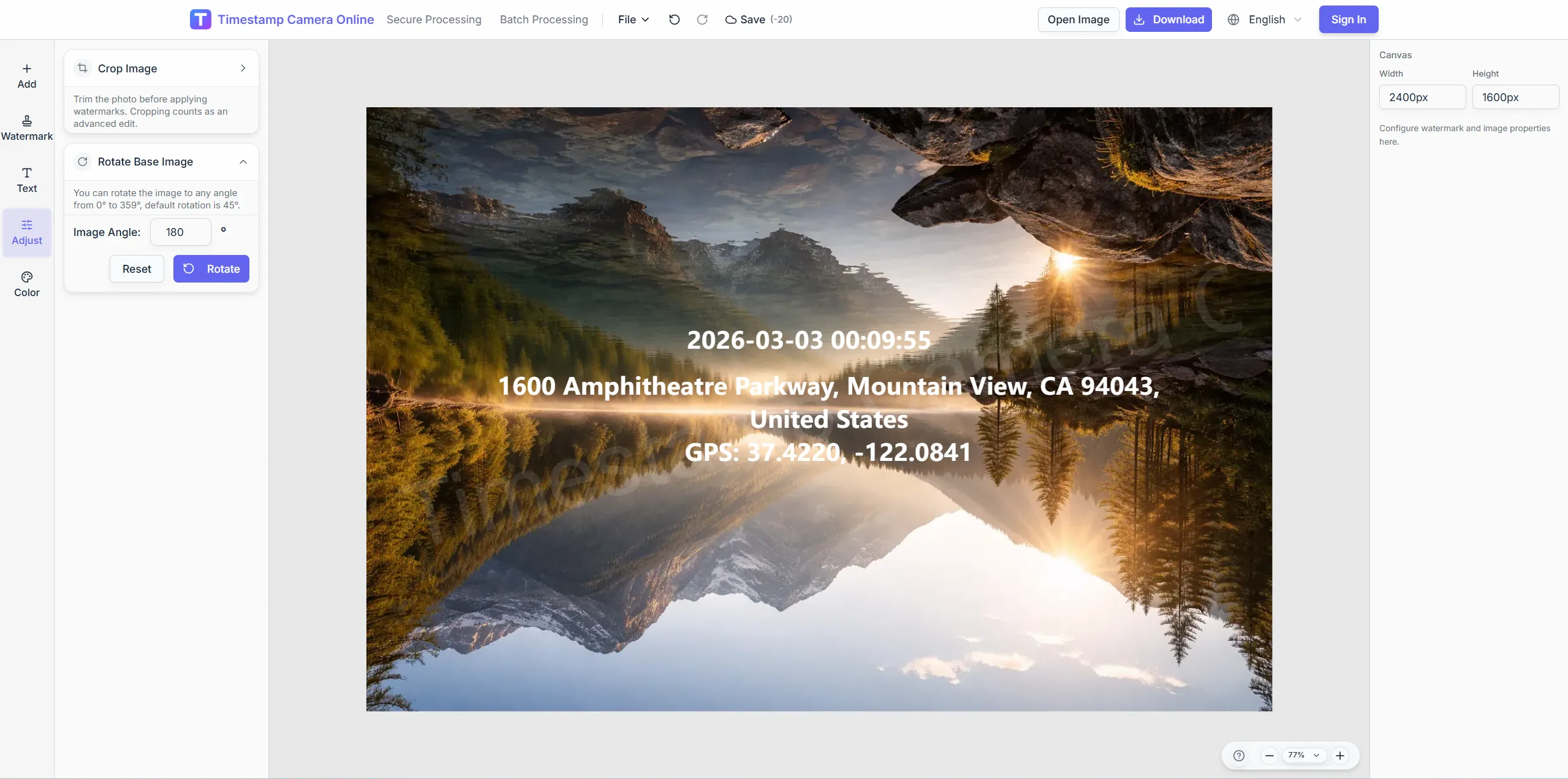
If the whole set needs the same treatment, you may also want to synchronize:
- crop ratio
- rotation or flip
- color adjustments
- cleanup regions for repeated sensitive areas
- one shared preset or template
This only works well when the images are similar enough that the same rule still looks intentional.
Step 5. Review a sample before the whole export
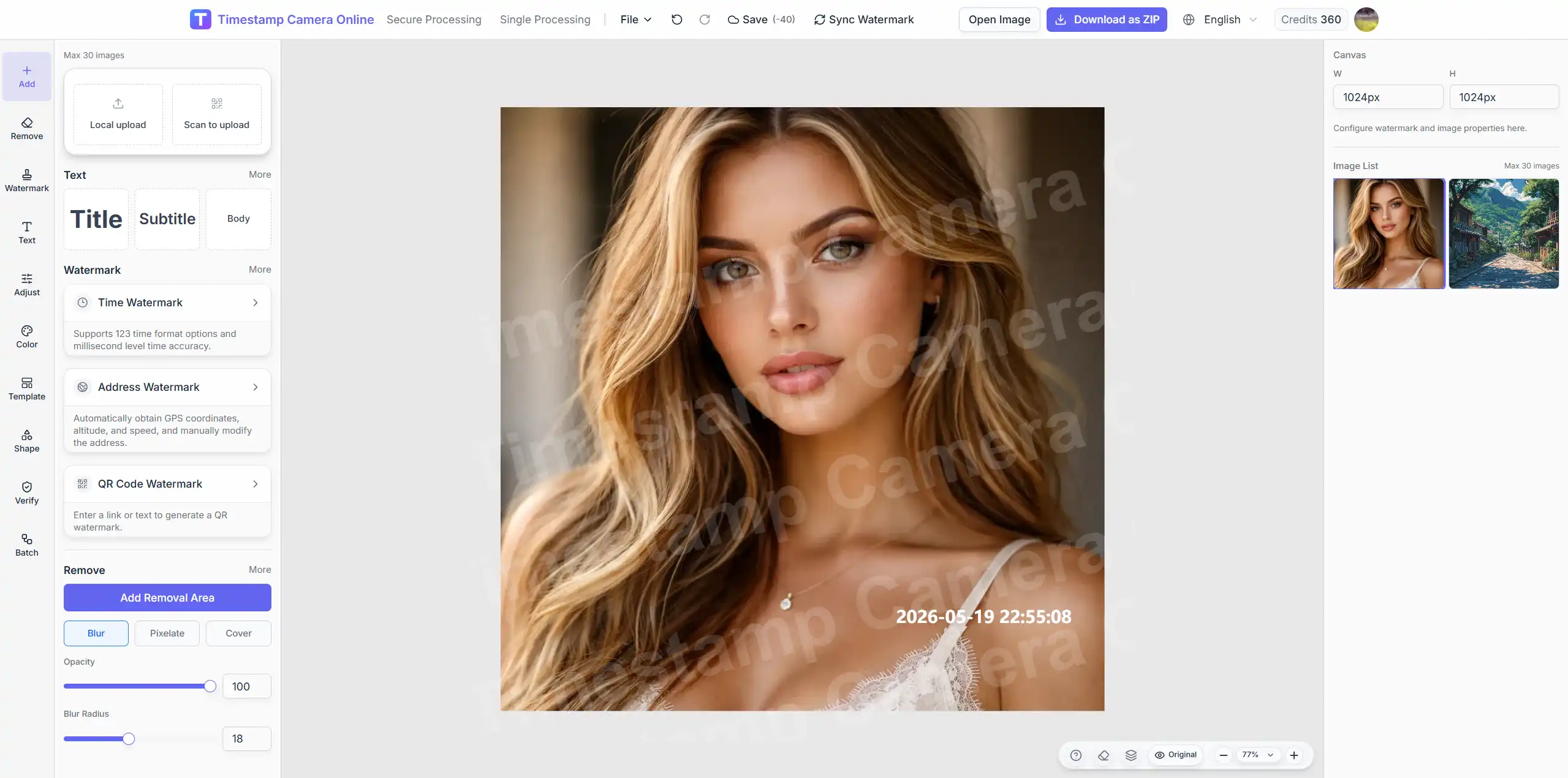
Even in batch mode, always inspect a few representative images:
- one dark image
- one bright image
- one image with busy background detail
If the timestamp remains readable on those, the full batch is likely safe.
Step 6. Export and archive clearly
Batch timestamping works best when the file organization is also clean. Use:
- stable export naming
- project-based folders
- a date-based archive rule
Batch processing saves time once. Good storage saves time every time someone needs the photos later.
When not to use batch mode
Batch mode is the wrong choice when:
- each photo needs a different timestamp position
- important subjects appear in different corners
- some photos need location while others do not
- you need careful manual visual correction on each image
In those cases, the regular editor is a better fit.
Need one-by-one corrections instead?
Switch to the full editor if each photo needs its own timestamp placement, cleanup, or content adjustments.
Common batch timestamp mistakes
Mistake 1. Using one layout for incompatible images
One placement rule does not fit every set of photos.
Mistake 2. Skipping sample review
Users often assume the template looks fine everywhere. That is where unreadable exports happen.
Mistake 3. Making the overlay too small
Small text may look clean in a grid but fail in actual review or reporting contexts.
Mistake 4. Forgetting downstream usage
Think about where the photos will be seen:
- PDF report
- chat tool
- printed document
- mobile review
The export should match the real destination.
Mistake 5. Treating batch mode like a creativity tool
Batch mode is strongest when it is repetitive, standardized, and predictable. If every image needs artistic decisions, use the single-image editor instead.
Best use cases
The strongest use cases are:
Construction and site progress records
Multiple photos from one inspection window can share one timestamp standard.
Equipment maintenance logs
Teams often need consistent time proof across many maintenance images.
Delivery or visit evidence
If the same proof layout is needed across a set of photos, batch mode is the efficient option.
Internal reporting
When a team sends the same kind of timestamped images every day, a repeated batch structure reduces mistakes.
Related paths
- Batch watermark to start a full batch run
- Timestamp online for quick single-photo timestamping
- Editor for one-off manual corrections
Final takeaway
Batch timestamping is valuable because it creates repeatable, standardized output, not just because it is faster.
If you often process many similar photos, batch timestamping becomes a real workflow of its own rather than a small convenience feature. And when the product supports shared templates, color adjustments, and cleanup rules, the value goes beyond just adding the same time line over and over.